
In Discord, name colors are tied to server roles, enhancing visual hierarchy and member identification. Each role can have a unique color, applied to members’ names in chats and user lists. To change the name color on Discord, you typically need a role with a specific color assigned by a server admin. This feature adds personality to servers, helping distinguish moderators, members, or special groups. However, without admin permissions or roles, options are limited, but creative workarounds exist.
This article walks you through changing your name color on Discord, exploring both role-based and non-role methods for a unique look.
Note: Want to elevate your server’s energy and draw more eyes to those colorful names? Explore Buying Discord Friend Requests here to expand your community and bring your server’s unique vibe to life!
How to Change Name Color on Discord with Roles?
To change the name color on Discord, you need admin or “Manage Roles” permissions. Here’s how to do it on a desktop:
Access Server Settings
Open Discord and navigate to the server where you want to change your name color. Click the server name in the top-left corner and select Server Settings from the dropdown menu. You’ll need administrative permissions or the “Manage Roles” permission to proceed.
Go to the Roles Tab
In the Server Settings menu, locate and click on the Roles tab on the left sidebar. This section allows you to manage existing roles or create new ones.
Create a New Role or Edit an Existing One
To create a new role, click the Create Role button. Give the role a name (e.g., “Colorful Member”). If you’re editing an existing role, click the role you want to modify, then select the Edit option.
Choose a Role Color
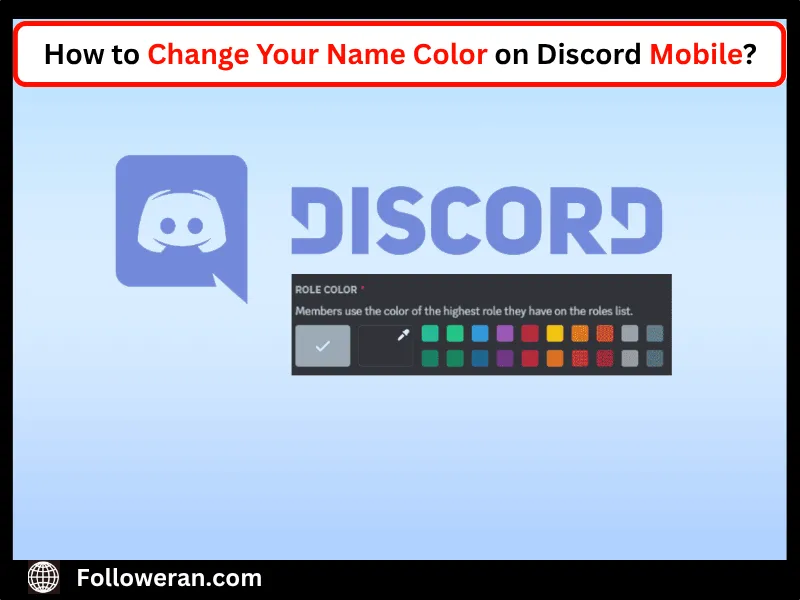
In the role settings, find the Role Color option. You can either select a color from the provided palette or enter a specific HEX color code for a custom shade.
For example, entering a HEX code like #FF0000 will set the role color to red, which will also change the name color of anyone assigned to this role.
Save Changes
After selecting your desired color, click Save Changes to apply the settings to the role. Assign the Role to Yourself or Others
Go to the Members section under Server Settings.
Find the user (yourself or someone else) and click the Add Role icon (usually a plus sign). Select the role you just created or edited to apply the color to their name. The user’s name will now be displayed in the chosen role color across the server.
Check Role Hierarchy (Optional)
Discord applies the color of the highest-priority role a user has. If a user has multiple roles with different colors, the role highest in the roles list (in the Roles tab) determines their name color. You can drag roles in the list to adjust their priority.
To enhance your Discord experience beyond just changing name colors, consider exploring a Discord SMM Panel for advanced server management and customization tools. So check out a reliable Discord Panel here to take your server to the next level!
How to Change Name Color on Discord with Multiple Roles?
When users have multiple roles, Discord displays the color of the highest role in the hierarchy. To change name color on Discord with multiple roles:
- Check Role Order: In “Server Settings > Roles,” ensure the desired color’s role is highest. Drag roles to reorder.
- Assign Roles: Add the preferred role to a member via the “Members” tab, ensuring it’s above others.
- Test Visibility: Verify the color change in chat or the member list.
How to change name color on Discord with multiple roles requires admins to prioritize roles carefully to avoid confusion. For a vibrant and well-managed server, boosting engagement can make a difference—consider using a service to Buy Discord Members here to grow your community and enhance role-based customization.
How to Change Your Name Color on Discord Mobile?
Based on available information, there is no significant difference in the process of changing name color on Discord across different devices (mobile, desktop, or browser).
The process relies on configuring roles within the server and functions identically across all platforms. Minor differences in the user interface, such as menu navigation, may exist due to device-specific layouts, but these do not affect the outcome of the name color change.
How to Change Name Color on Discord Without Roles?
Changing name color on Discord without roles is not directly supported, as colors are tied to roles. However, there are creative alternatives:
- Request Admin Help: Ask a server admin to create a role with your desired color and assign it to you. Many admins offer this for active members.
- Use Nicknames with Emojis: While not a color change, adding emojis to your nickname (e.g., 🌟Username) can visually distinguish your name.
- Leverage Bots: Bots like AmariBot can assign temporary roles based on activity, potentially changing your name color as you level up.
These methods correspond with ways to modify your name color on Discord without using roles, providing restricted yet inventive customization possibilities.
Summary: How To Change Name Color On Discord
Changing your name color on Discord is a fun way to personalize your server presence, primarily through role-based methods that require admin permissions or creative workarounds like bots and emojis for those without roles. Whether using desktop or mobile, the process remains consistent, with role hierarchy determining color priority for users with multiple roles.
FAQs About Change Name Color On Discord
Can I change my name color without admin permissions?
No, colors require roles. Ask an admin for a colored role or use emojis in your nickname for visual flair.
How do I change my name color on Discord mobile?
In the Discord app, go to Server Settings, manage roles, set a color, and assign it to a member.
Why isn’t my name color changing with multiple roles?
The highest role’s color applies. Reorder roles in Server Settings to prioritize the desired color.
Can I use custom colors for roles?
Yes, select “Custom” in the role color settings and enter a HEX code for a unique shade.